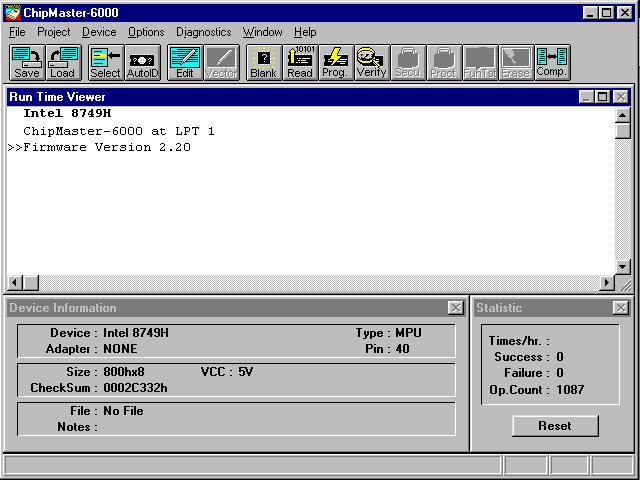
When you start the ChipMaster 6000, you are presented with the following screen. Basically, it confirms that the ChipMaster has been found on the printer port and is ready for action.
As a demonstration of the general features of the ChipMaster, the following steps will show how to program an EEPROM.
.
Insert an EEPROM into the ChipMaster's ZIF (zero insertion force) socket. When the ZIP's lever is in the up position, it is ready to accept a chip. Secure the chip by returning the lever to the down position.
This demonstration will use the SGS-Thompson M27C64A, which is a 8Kx8 CMOS EPROM 200nS.
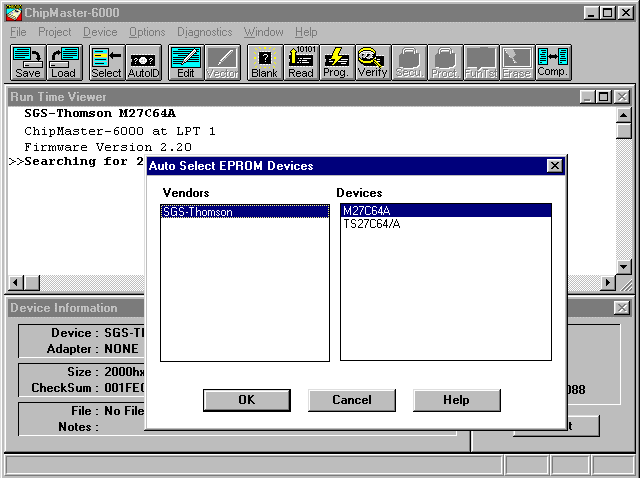
Pull down the Device menu and choose Auto Select EPROM Alt+A.
or press 
The pop-up box presents two options: choose the first (M27C64A).
.
To be assured that the EEPROM is blank, preform the following steps:
1. Pull down the Device menu and choose Read Alt+R.
or press 
(The green "Busy" light on the ChipMaster will flash, indicating a read operation.)
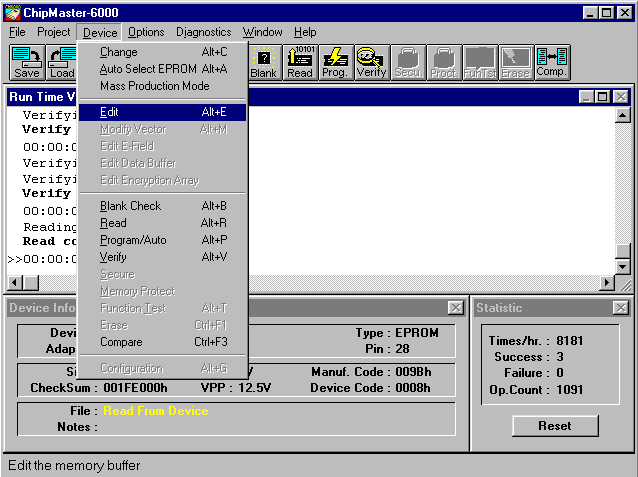
2. Then pull down the Device menu and choose Edit Alt+E.
or press 
.
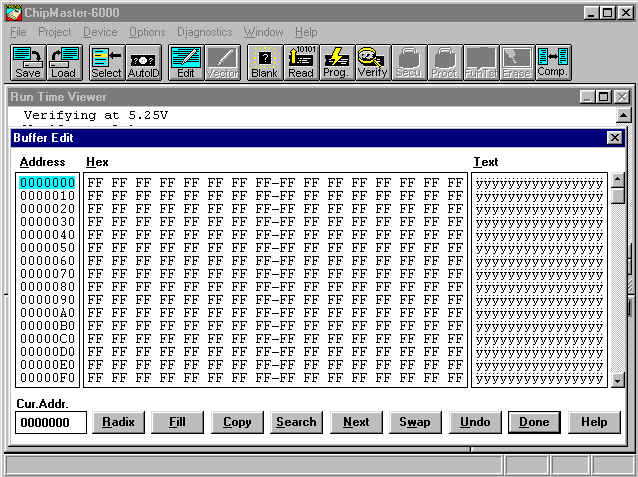
Voila, you're looking at the EEPROM's contents!
Every location contains "FF" which is the hexadecimal representation of the binary string "1111 1111". This indicates that the EEPROM is empty, and ready to program. If the contents were not all "FF's" the software would not allow us to program (overwrite) the device. We would have to erase the EEPROM by exposing it to ultraviolet light before moving ahead.
.
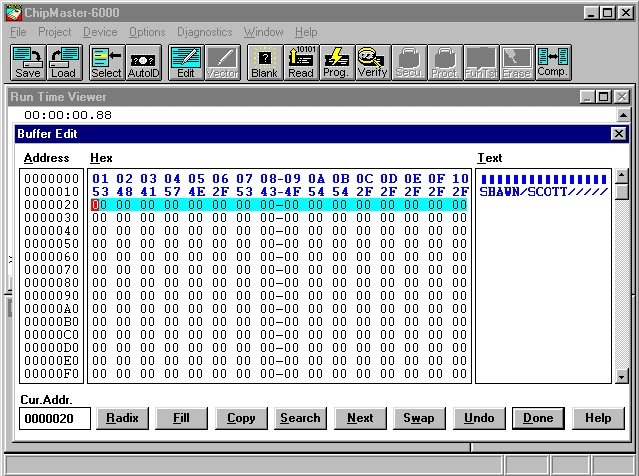
To change memory contents, simply cursor to the memory location, and type in a new value. Memory locations 0000000 to 000000F have been loaded with the hexadecimal values 01 to 10, while locations 0000020 to 000002F contain the hexadecimal values for the ASCII characters spelling my and my partner's first names. Note how the Text box to the right of the memory dump displays the ASCII representation of memory.
This new assignment of memory will now be programmed into the EEPROM. And once this data is programmed, it will remain for several years until the EEPROM is again erased.
Click the  button to close the pop-up
window.
button to close the pop-up
window.
.
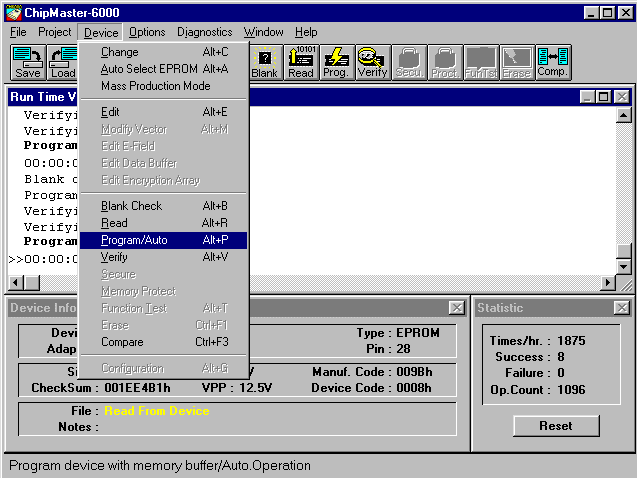
Once again, pull down the Device menu and this time choose Program/Auto Alt+P.
or press 
(The green "Busy" light on the ChipMaster will flash, indicating a program operation.)
.
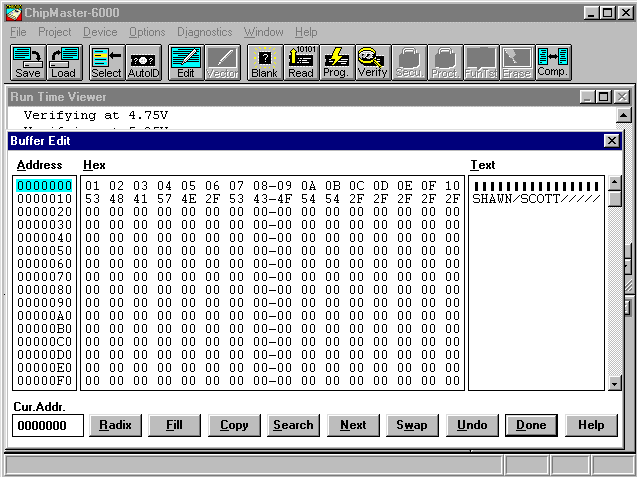
Repeat STEP 3 to confirm that you have successfully programmed the device.
This screen indeed confirms that the desired locations have been changed. Had this program not been trivial, the EEPROM might contain a computer's BIOS program, or the code for Space Invaders.
Hopefully, this demonstration shows how easy it is to program an EEPROM. Programming is easy -- deciding what to program is the hard part!
You are
.

To learn more about programmable devices and the ChipMaster 6000, check-out the following sites.
http://webopedia.internet.com/TERM/E/EEPROM.html
ChipMaster 6000 homepage
http://www.testech-elect.com/logical/cm6000.htm
Student Page
http://www.geocities.com/eprom99/
COMP 227 Page

| CMOS | Complementary Metal Oxide Semiconductor |
| EARPROM | Electircally alterable programmable read only memory |
| EDO DRAM | Extended Data Output Dynamic Random Access Memory |
| EEPROM | Elecrically erasable programmable read only memory |
| EPROM | Erasable programmable read only memory |
| FLASH | Selectively Programmable EEPROM |
| FPAL | Fuse-programmable array logic |
| NVRAM | Non-Volatile Random Acces Memory |
| PLA | Programmable array of AOI logic |
| PLD | Programmable logic device |
| PROM | Programmable Read Only Memory |
| RAM | Randon Access Memory |
| Read | The process of retrieving data from a memory |
| Refresh | To renew the contents of a dynamic memory |
| ROM | Read only memory |
| SRAM | Static random access memory |
| UV EEPROM | Ultraviolet erasable programmable ROM |